
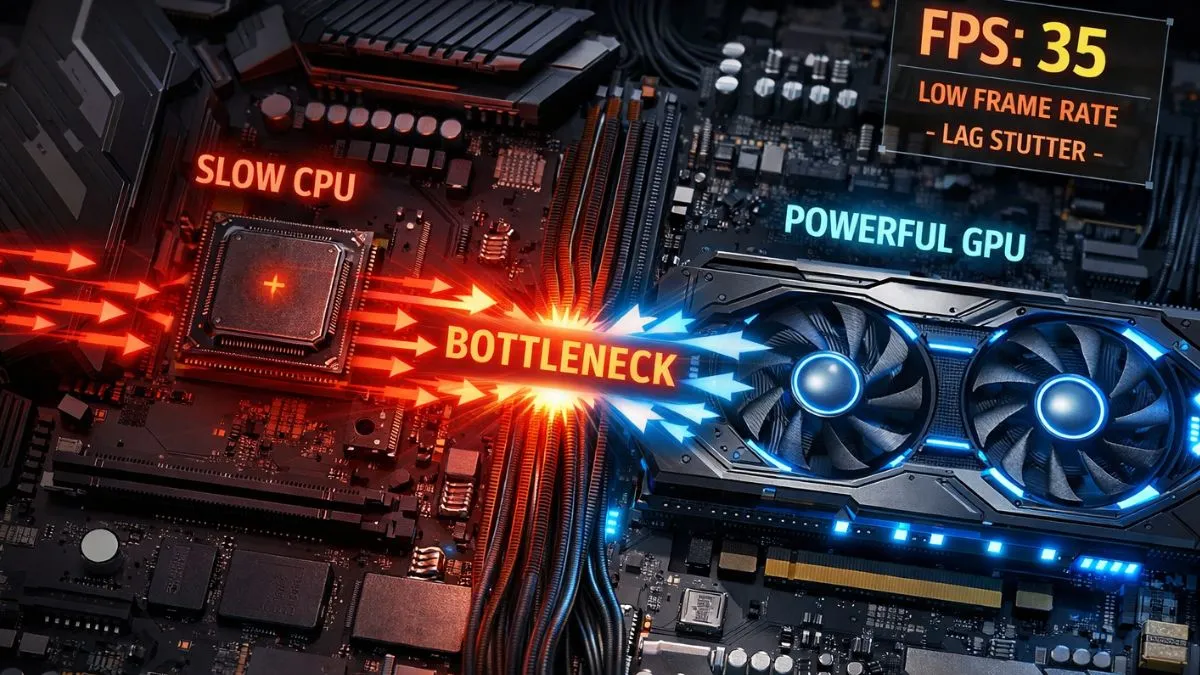
A CPU bottleneck happens when your processor is too slow to keep your GPU or other components fully busy, limiting your PC’s performance.
Introduction
Many gamers ask, What is a CPU Bottleneck? To understand this, imagine a busy highway during rush hour. You have six wide lanes where cars can drive quickly, but suddenly, all the traffic must pass through a narrow one-lane bridge. Even though the road ahead is fast and clear, everything slows down because of that single restriction.
This simple example helps explain what a CPU bottleneck is in a computer system.
A CPU bottleneck works the same way inside your computer.
In simple terms, a CPU bottleneck occurs when the processor cannot process instructions fast enough to keep other components—especially the GPU—busy. When this happens, your powerful graphics card or other hardware sits idle waiting for the CPU to finish calculations. The result? Low FPS, stuttering gameplay, slow applications, and frustrating system lag.
Many users experience this problem without realizing it. They upgrade to a powerful GPU expecting massive performance gains, but games still struggle. The hidden culprit is often the system performance limiter: the CPU itself. When processor limits, workload distribution issues, or processing constraints occur, the entire system slows down.
This guide will break down everything you need to know about CPU bottlenecks in 2026—how they work, how to detect them, and how to fix them so your PC runs at its full potential.
How a CPU Bottleneck Works
To understand CPU bottlenecks, you first need to understand the relationship between your CPU and GPU. These two components work together constantly, but they perform very different roles in the frame rendering pipeline.
CPU vs GPU Interaction Explained
Think of the CPU as the manager of your computer and the GPU as the artist.
The CPU prepares tasks such as physics calculations, AI logic, game mechanics, and instructions for rendering. After preparing these instructions, it sends them to the GPU, which then renders the final images displayed on your screen. If the CPU cannot prepare data fast enough, the GPU has to wait—creating a performance bottleneck.
When this happens, you may see GPU utilization dropping below 80–90% while the CPU usage spikes close to 100%. That imbalance means your graphics card is waiting for instructions, limiting the system throughput of your PC.
This situation is often called a CPU-bound workload or compute-bound scenario because the processor becomes the limiting factor for performance.
Cores, Threads, IPC, and Clock Speed
Several technical factors determine whether a CPU becomes a bottleneck:
1. Core Count
More cores allow the CPU to handle multiple tasks simultaneously. Modern processors often have 6–16 cores or more.
2. Threads
Threads allow each core to process multiple instruction streams. Technologies like hyper-threading improve multi-thread performance.
3. Clock Speed (GHz)
Clock speed determines how quickly the CPU processes instructions.
4. IPC (Instructions Per Clock)
IPC measures how efficiently a processor executes instructions per cycle.
When any of these factors are insufficient for the workload—such as heavy gaming or rendering—the CPU becomes the processing constraint.
Real-world examples include:
- Strategy games with hundreds of AI units
- Open-world games with complex physics
- Video editing and 3D rendering workloads
- Heavy multitasking and streaming setups
In these scenarios, the CPU must process massive amounts of data before the GPU can render frames.
Common Causes of a CPU Bottleneck
Not every CPU bottleneck is caused by outdated hardware. Several factors can trigger it, including hardware imbalance, software inefficiencies, and even thermal issues.
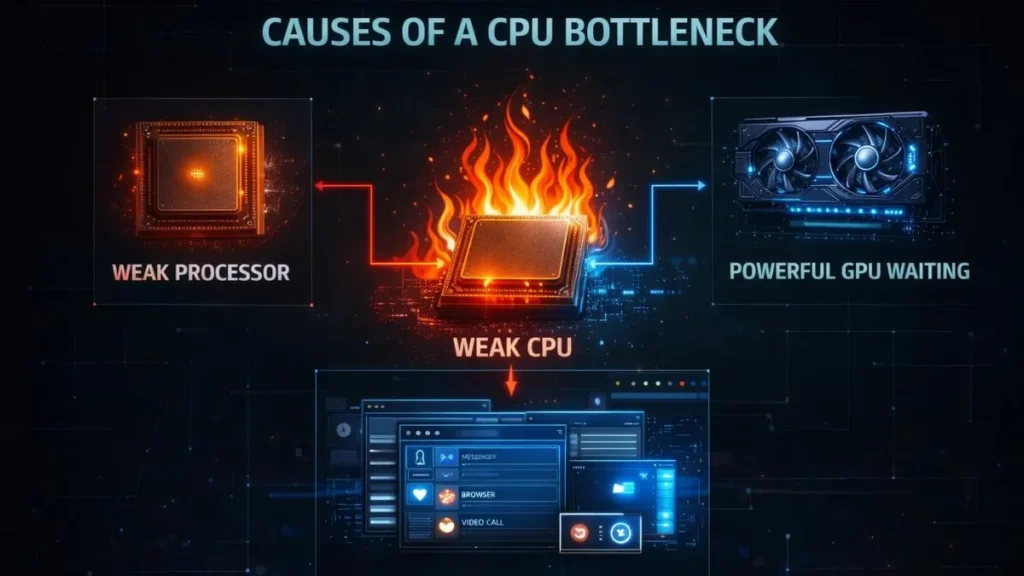
Weak CPU vs Strong GPU
One of the most common causes is pairing a powerful graphics card with an older processor.
For example:
| CPU | GPU | Result |
|---|---|---|
| Old quad-core CPU | High-end RTX GPU | CPU bottleneck |
| Modern multi-core CPU | Entry GPU | GPU bottleneck |
| Balanced modern components | Mid-high GPU | Optimal performance |
When a weak CPU is paired with a strong GPU, the GPU spends time waiting for instructions instead of rendering frames.
Background Processes and Software Inefficiencies
Another hidden cause is excessive background applications.
Common CPU-intensive processes include:
- Web browsers with many tabs
- Streaming software
- Antivirus scans
- Game launchers
- Background updates
These processes compete for CPU resources and disrupt workload distribution, reducing performance in games and applications.
Thermal Throttling and Cooling Problems
Overheating can also create a CPU bottleneck.
When temperatures exceed safe limits, the CPU automatically reduces its clock speed to protect itself. This process is called thermal throttling, and it directly reduces processing power.
Symptoms include:
- Sudden FPS drops
- CPU frequency decreases under load
- Loud fans and overheating
Improving cooling and airflow can often restore lost performance.
Symptoms: How to Know if Your CPU Is Bottlenecked
A CPU bottleneck doesn’t always announce itself clearly. Instead, it shows subtle signs that many users mistake for other issues.
High CPU Usage + Low GPU Usage
One of the most obvious indicators is a mismatch between CPU utilization and GPU utilization.
Example scenario:
- CPU usage: 95–100%
- GPU usage: 60–70%
This means the processor is overloaded while the GPU is waiting for tasks.
FPS Drops, Stuttering, and Frame Rate Dips
Another major symptom is unstable frame rates.
You might notice:
- Frame rate dips during intense scenes
- Micro-stuttering while moving through large environments
- Sudden lag spikes during combat or explosions
These problems occur because the CPU cannot maintain consistent frame delivery times.
System Responsiveness Issues
CPU bottlenecks can also affect everyday tasks.
You may experience:
- Slow application launches
- Delayed response to keyboard and mouse input
- Random system slowdowns
These symptoms indicate the CPU is struggling to manage the system workload.
CPU vs GPU Bottleneck – How to Tell the Difference
Many people confuse CPU bottlenecks with GPU limitations, but they behave differently.
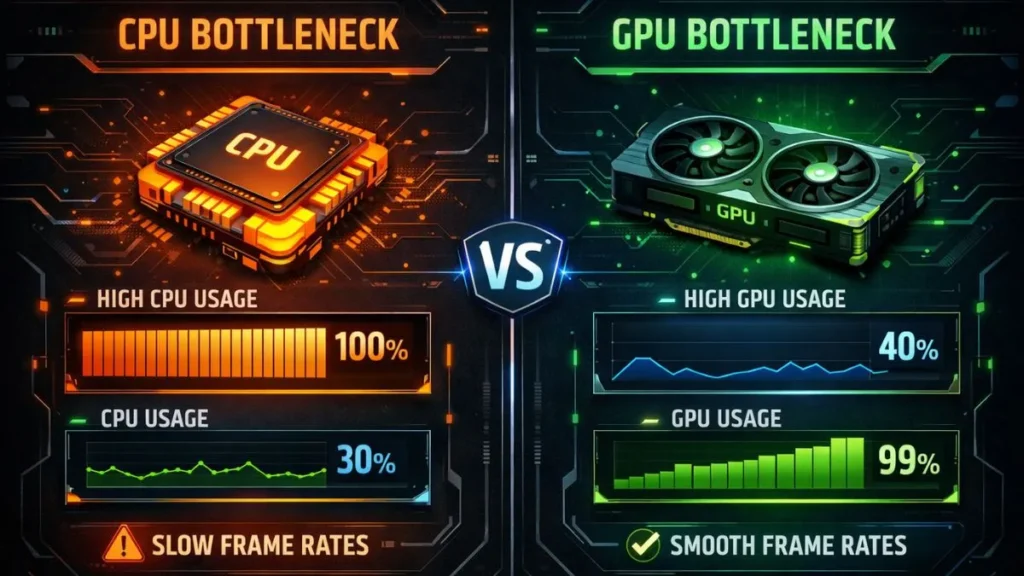
GPU Bottleneck
A GPU bottleneck occurs when the graphics card is the limiting factor.
Signs include:
- GPU usage 95–100%
- CPU usage 40–60%
- Performance improves when lowering graphics settings.
CPU Bottleneck
A CPU bottleneck occurs when the processor limits performance.
Signs include:
- CPU usage 90–100%
- GPU usage below 80%
- Lower FPS at 1080p than 4K in some cases
Resolution plays an important role.
Resolution Impact: 1080p vs 4K
| Resolution | Bottleneck Type |
|---|---|
| 1080p | Often CPU bottleneck |
| 1440p | Balanced workload |
| 4K | Mostly a GPU bottleneck |
Lower resolutions allow the GPU to render frames faster, exposing CPU processing limits.
Tools & Methods to Detect a CPU Bottleneck
Luckily, detecting bottlenecks today is easier than ever thanks to modern performance monitoring tools.
Task Manager and Resource Monitor
Windows includes built-in tools that show CPU utilization metrics and system performance.
Steps:
- Open Task Manager
- Go to the Performance tab
- Monitor CPU and GPU usage during gaming
If the CPU stays near 100% while the GPU remains low, a bottleneck likely exists.
MSI Afterburner and Performance Overlays
Tools like MSI Afterburner provide advanced monitoring overlays that display:
- CPU usage per core
- GPU usage
- frame time
- FPS
- temperatures
This allows real-time performance analysis while gaming.
Benchmarking Software and Bottleneck Calculators
Benchmark tools provide a more accurate way to measure performance.
Examples include:
- 3DMark
- Cinebench
- PCMark
Many websites also offer CPU bottleneck calculators, which estimate whether your CPU and GPU pairing is balanced.
Not sure if your system has a bottleneck? Try our PC Bottleneck Calculator to instantly analyze your CPU and GPU balance.
How to Fix a CPU Bottleneck
Fixing a CPU bottleneck depends on the root cause. Fortunately, there are several effective solutions.
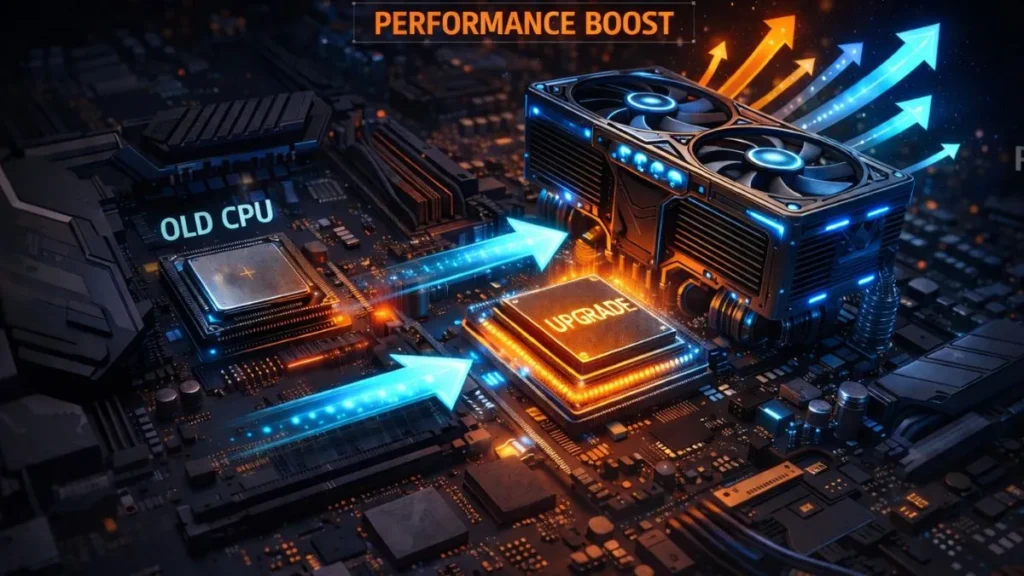
Upgrade CPU or Balance Hardware
The most reliable fix is upgrading the CPU.
A balanced build ensures the CPU and GPU work together efficiently.
Example balanced setups:
| GPU | Recommended CPU |
|---|---|
| RTX 4060 | Ryzen 5 / Core i5 |
| RTX 4070 | Ryzen 7 / Core i7 |
| RTX 4090 | Ryzen 9 / Core i9 |
Matching hardware ensures proper workload balancing.
Optimize Software and Reduce Background Load
Before upgrading hardware, try simple optimizations:
- Close unnecessary apps
- Disable startup programs
- Update drivers
- Enable game mode in Windows
These steps reduce CPU load and improve system performance.
Overclocking and Thermal Management
Advanced users can also try CPU overclocking.
Overclocking increases clock speed and improves processing performance. However, it requires:
- Better cooling
- Stable motherboard
- Proper voltage settings
Improving airflow and cooling often prevents thermal throttling and restores CPU performance.
Scenario-Based Fixes (Games & Productivity)
Different workloads stress the CPU in different ways.
Gaming Performance Issues
CPU-heavy games include:
- Strategy games
- Simulation titles
- Large multiplayer games
Solutions include lowering settings like:
- crowd density
- physics calculations
- draw distance
Video Rendering and 3D Modeling
Content creators often face CPU bottlenecks in rendering tasks.
Improving performance may involve:
- upgrading to CPUs with more cores
- using GPU acceleration
- optimizing render settings
Multitasking and Streaming
Streaming while gaming is extremely CPU-intensive.
Possible fixes:
- hardware encoding (NVENC)
- upgrading to multi-core CPUs
- Reducing background apps
Advanced Considerations & Expert Tips
Even powerful CPUs can experience bottlenecks depending on architecture.
Single-Thread vs Multi-Thread Performance
Some games rely heavily on single-thread performance, meaning only one CPU core handles most of the work.
If that single core reaches 100% usage, the entire system slows down—even if other cores remain idle.
Memory Bandwidth and RAM Speed
RAM speed also influences CPU performance.
Faster RAM improves:
- memory bandwidth
- data transfer rates
- overall system responsiveness
Slow RAM can create a memory bottleneck, indirectly causing CPU performance issues.
Microarchitectural Limits
Modern CPUs also face deeper architectural constraints:
- pipeline stalls
- cache limitations
- instruction scheduling delays
These factors influence how efficiently CPUs execute workloads.
Frequently Asked Questions
Below are the FAQs about CPU bottlenecks.
Does RAM speed influence CPU bottlenecks?
Yes. Faster RAM improves memory bandwidth and allows the CPU to access data faster, reducing potential bottlenecks.
Can a bottleneck damage hardware?
No. Bottlenecks only limit performance. They do not physically damage components.
Is hyper-threading relevant?
Yes. Hyper-threading improves multi-thread workloads and can reduce bottlenecks in multitasking and rendering tasks.
Does resolution change bottlenecks?
Yes. Lower resolutions often shift the bottleneck to the CPU, while higher resolutions stress the GPU.
How do I detect a CPU bottleneck in games?
Use monitoring tools like MSI Afterburner or Task Manager to check CPU and GPU usage. High CPU usage with low GPU usage usually indicates a bottleneck.
Summary & Takeaways
A CPU bottleneck occurs when your processor becomes the system performance limiter, preventing other hardware from reaching its full potential.
The most common signs include:
- high CPU usage
- low GPU utilization
- frame rate drops
- stuttering gameplay
- slow system responsiveness
The main causes include hardware imbalance, background processes, and thermal throttling.
The good news is that CPU bottlenecks are often fixable through system optimization, hardware upgrades, improved cooling, and better workload balancing.
If you want the best performance from your PC, always ensure your CPU and GPU are properly balanced. Monitor your system regularly, optimize your setup, and upgrade components strategically to prevent performance bottlenecks.

PC Bottleneck Calculator helps users analyze CPU and GPU performance, detect bottlenecks, and optimize PC builds with simple tools and practical guides.