
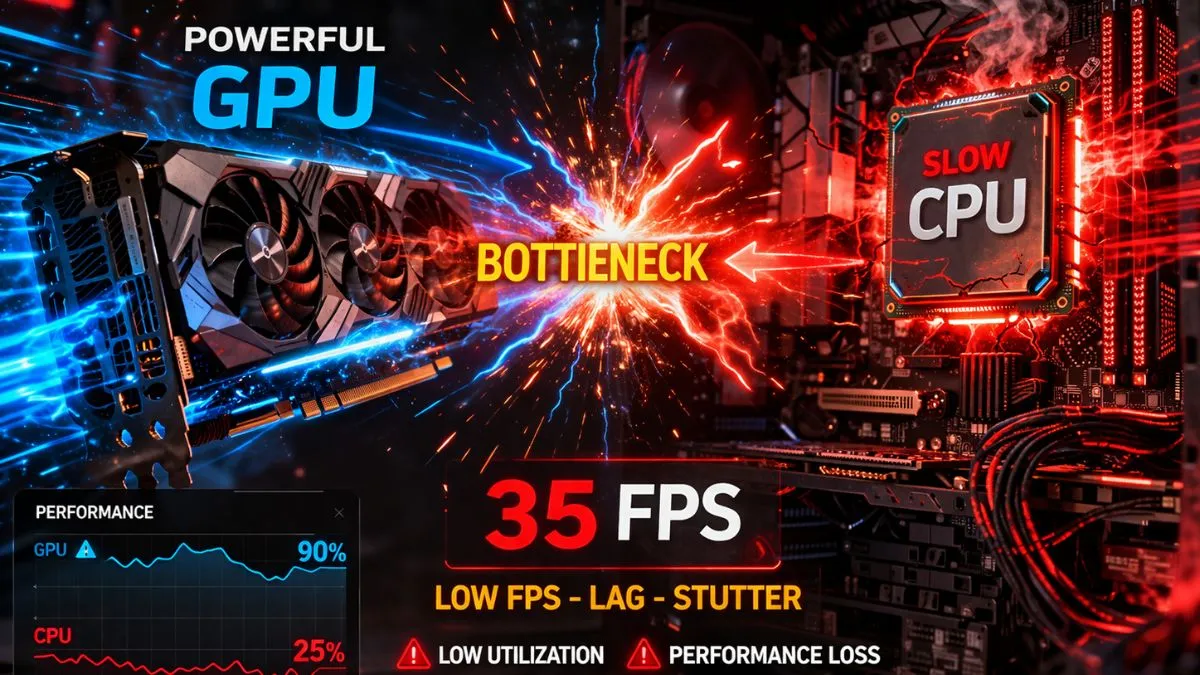
A bottleneck in a PC is caused when one hardware component (like CPU, GPU, RAM, or storage) cannot keep up with the performance of other components, resulting in reduced overall system efficiency, lower FPS, and performance issues such as lag or stuttering.
Introduction
Ever built a powerful gaming PC, installed your favorite game, and still experienced low FPS, stuttering, or lag? It feels frustrating, right? You might be wondering, what causes a bottleneck in a PC even when your hardware looks strong on paper?
Here’s the truth—your system might be suffering from a bottleneck.
A PC bottleneck happens when one component limits the performance of another. Think of it like a traffic jam on a highway. Even if you have a super-fast GPU, it won’t matter if the road ahead—your CPU, RAM, or storage—is slowing everything down.
This issue is extremely common in gaming PCs, content creation setups, and even everyday computers. And the worst part? Most people don’t even realize what’s actually holding their system back.
What Is a Bottleneck in a PC?
A bottleneck is simply a performance limitation caused by an imbalance in your system. Every PC works as a team—CPU processes instructions, GPU renders graphics, RAM handles temporary data, and storage loads files.
If one of these components is weaker or overloaded, it slows down everything else. This is known as component imbalance or hardware mismatch.
Here’s the key thing most people don’t understand:
Every PC has a bottleneck.
Yes, you read that right. The goal isn’t to eliminate it (which is impossible), but to optimize it so your system performs efficiently.
What Causes a Bottleneck in a PC?
A bottleneck in a PC is usually caused by an imbalance between key components like the CPU, GPU, RAM, or storage. When one part can’t keep up with the others, it slows down the entire system.
This imbalance can come from outdated hardware, mismatched components, or even software-related issues. The result? Lower FPS, stuttering, and reduced overall performance.
Let’s break down the most common causes of bottlenecks and how they affect your system.
CPU Limitations (Most Common Cause)
The CPU is the brain of your computer. It handles calculations, game logic, AI processing, and sends instructions to the GPU. If your CPU is too slow or outdated, it becomes the biggest bottleneck.
Imagine pairing a high-end GPU with a weak CPU. The GPU waits for instructions, causing low GPU utilization and poor performance.
This usually happens in:
- CPU-heavy games (like strategy or simulation games)
- Older CPUs with low single-core performance
- Background-heavy workloads
When your CPU hits 90–100% usage while GPU usage stays low, that’s a clear sign of a CPU bottleneck.
GPU Limitations
On the flip side, the GPU can also become the bottleneck. This happens when your graphics card can’t keep up with rendering demands.
High-resolution gaming (1440p, 4K) and ultra settings push the GPU to its limits. When GPU usage stays at 95–100%, it means your graphics card is the limiting factor.
And guess what?
This is often a GOOD bottleneck in gaming.
Why? Because you want your GPU fully utilized, it means you’re getting maximum performance from it.
RAM Capacity & Speed Issues
RAM is often ignored, but it plays a huge role in system performance. Insufficient or slow RAM can create serious bottlenecks.
Common issues include:
- Running games with only 8GB RAM
- Using single-channel memory
- Low RAM frequency (e.g., 2133MHz vs 3200MHz)
When RAM is maxed out, your system starts using storage as backup memory, causing massive slowdowns.
Storage Speed (HDD vs SSD Impact)
Still using an HDD? That’s a hidden bottleneck many people overlook.
HDDs are significantly slower than SSDs. They affect:
- Game loading times
- Texture streaming
- System responsiveness
Switching to an SSD can dramatically improve performance—even without upgrading CPU or GPU.
Thermal Throttling
Heat is the silent killer of performance.
When your CPU or GPU overheats, it automatically reduces speed to prevent damage. This is called thermal throttling, and it can destroy your FPS.
Common causes:
- Poor cooling system
- Dust buildup
- Low-quality thermal paste
Background Processes & Software Load
You might not realize it, but background apps can eat up CPU and RAM.
Things like:
- Chrome tabs
- Antivirus scans
- Windows updates
All of these can create a bottleneck by consuming resources.
Workload & Game Optimization
Not all games are created equal. Some rely heavily on CPU, others on GPU.
For example:
- Esports games → CPU-heavy
- AAA games → GPU-heavy
Poorly optimized games can also cause bottlenecks even on powerful systems.
Advanced Causes Most Guides Ignore
Here’s where most guides stop—but this is where you gain an edge.
- Single-core vs multi-core performance: matters more than core count in many games.
- VRAM limitations: can choke your GPU even if it’s powerful.
- Resolution scaling: shifts load between CPU and GPU.
- Game optimization: can override hardware strength.
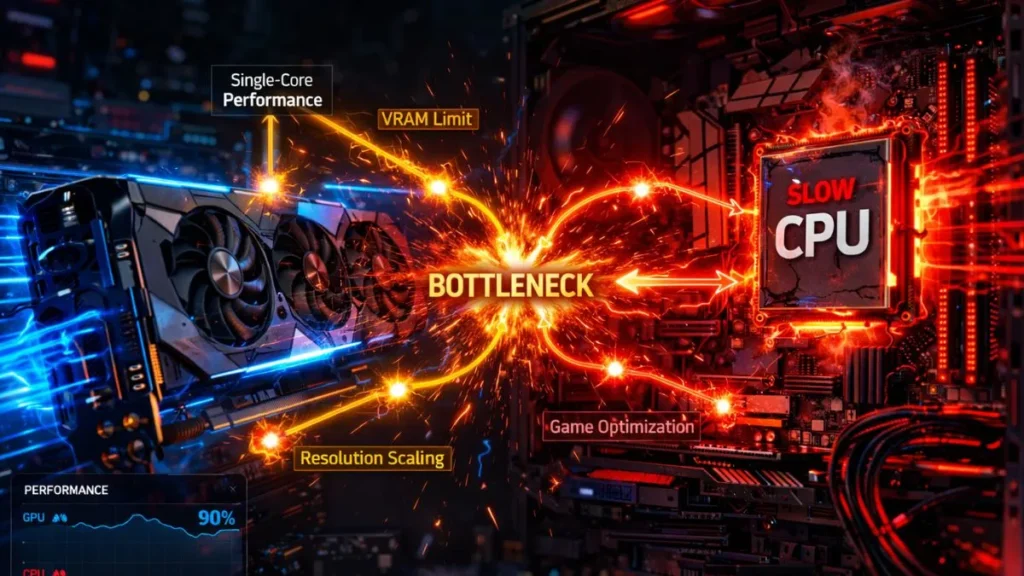
Understanding these factors gives you a massive advantage in diagnosing issues.
CPU vs GPU Bottleneck (Simple Comparison)
| Factor | CPU Bottleneck | GPU Bottleneck |
|---|---|---|
| Usage Pattern | CPU 90–100% | GPU 95–100% |
| FPS Impact | Low FPS + stutter | Stable but limited FPS |
| Common Cause | Weak processor | High resolution/settings |
| Fix | Upgrade CPU | Lower settings or upgrade the GPU |
If you want a deeper understanding of the difference between CPU and GPU bottlenecks, check out our detailed guide.
How to Identify What’s Causing Your Bottleneck
Let’s make this simple and actionable.
Step-by-step:
- Check CPU usage
- Check GPU usage
- Monitor FPS behavior
If CPU is maxed and GPU is low → CPU bottleneck
If GPU is maxed → GPU bottleneck
Not sure what’s causing YOUR bottleneck? Use a PC bottleneck calculator to analyze your system instantly.
Common Signs Your PC Is Bottlenecking
A bottleneck doesn’t always scream at you—but the signs are there.
You might notice:
- Low FPS despite strong hardware
- Stuttering and lag spikes
- High CPU usage but low GPU usage
- System slowdown during multitasking
These are clear indicators of performance imbalance.
How to Fix a Bottleneck in a PC
Fixing a bottleneck isn’t always about upgrading. Sometimes, optimization is enough.
Here’s what you can do:
- Upgrade CPU or GPU (if necessary)
- Enable XMP for faster RAM
- Close background applications
- Improve the cooling system
- Adjust game settings
Smart optimization can give you a 20–40% performance boost without spending money.
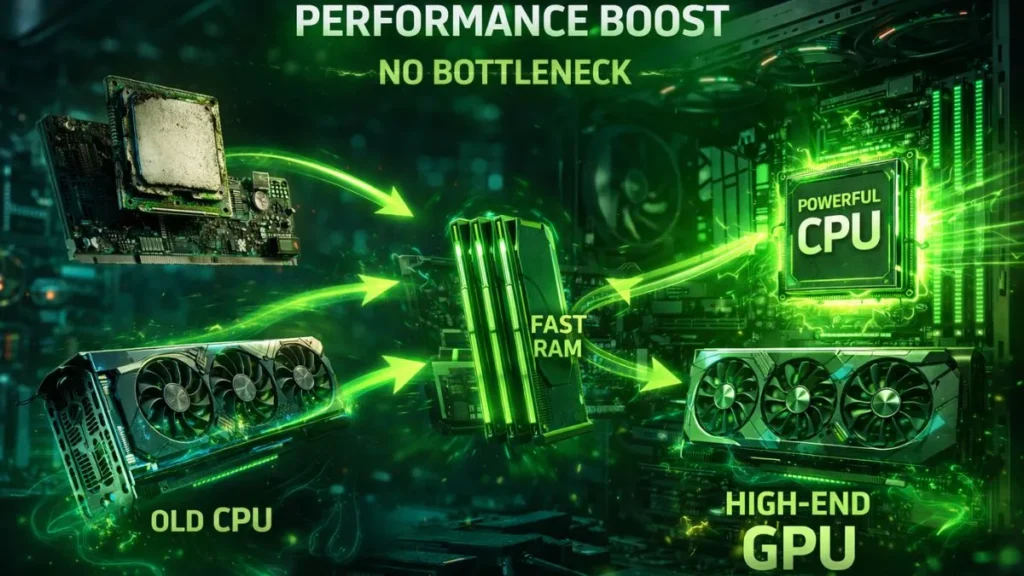
Is a Bottleneck Always Bad?
This might surprise you—but no, it’s not always bad.
In fact:
- A GPU bottleneck is ideal for gaming
- A balanced bottleneck ensures efficiency
The real problem is a severe imbalance, not bottlenecks themselves.
Does Resolution Affect Bottlenecks?
Absolutely.
- 1080p → CPU heavy
- 1440p → Balanced
- 4K → GPU heavy
Higher resolution shifts workload to the GPU, reducing CPU bottlenecks.
Biggest Bottleneck Myths
Let’s break some common myths:
“0% bottleneck exists.”
False. Every system has one.
“Perfect pairing removes bottleneck.”
Impossible
“All bottlenecks are bad.”
Not true
Understanding this gives you a huge advantage over most users.
Frequently Asked Questions
Below are the FAQs
Why is my PC bottlenecking?
Because one component is limiting the performance of another due to an imbalance or a workload mismatch.
How can I tell if my CPU is bottlenecking?
High CPU usage (90–100%) with low GPU usage is the main sign.
How do I know if my GPU is bottlenecking?
If GPU usage is consistently near 100%, it’s the limiting factor.
Can a bottleneck damage my PC?
No, but it can reduce performance and efficiency.
Is a bottleneck always bad for performance?
No. A slight bottleneck is normal and often beneficial.
Is 90% GPU usage normal or bad?
It’s completely normal—and usually ideal for gaming.
What percentage of the bottleneck is acceptable?
Anything under 10–15% is generally considered fine.
Can I fix a CPU bottleneck?
Yes, by upgrading the CPU, optimizing settings, or reducing the workload.
Does cooling help reduce bottlenecks?
Yes. Better cooling prevents thermal throttling.
How do I know if my CPU or GPU is the problem?
Check usage levels and performance metrics.
Conclusion
A PC bottleneck isn’t some mysterious issue—it’s a natural part of how systems work. The real skill lies in understanding, identifying, and optimizing it. Once you know how your components interact, you can make smarter upgrades, better decisions, and unlock your PC’s full potential.
Not sure what’s holding your system back? Try a bottleneck calculator and take control of your performance today.
PC Bottleneck Calculator helps users analyze CPU and GPU performance, detect bottlenecks, and optimize PC builds with simple tools and practical guides.