
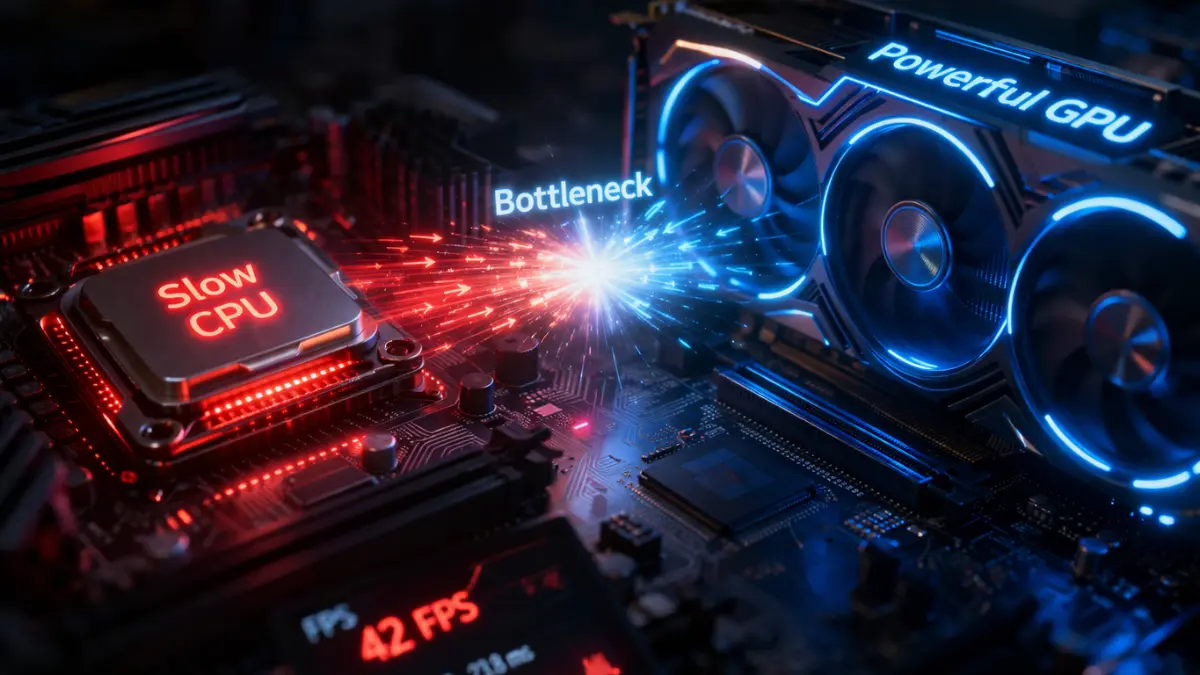
A GPU bottleneck happens when your graphics card is the slowest component in your system and cannot process frames fast enough. This leads to lower FPS, lag, and reduced gaming performance.
Introduction
If you’ve ever built or upgraded a gaming PC, you’ve probably heard the term GPU bottleneck thrown around. It sounds technical—and honestly, a bit intimidating—but the idea is actually simple once you break it down. In any computer, all system components like the CPU, GPU, RAM, and storage work together in a chain. When one part becomes slower than the rest, it limits the entire system’s performance. That’s what we call a hardware limitation, or more specifically, a bottleneck.
Now, in gaming, this matters a lot because your graphics card is responsible for frame rendering, which directly impacts your gaming performance. Think about it: no matter how powerful your CPU is, if your GPU can’t keep up, your frame rate suffers. This results in lag, stuttering, or lower FPS than expected. The balance between CPU and GPU in the rendering pipeline is crucial, and when it breaks, your gaming experience takes a hit.
Understanding GPU bottlenecks is essential if you want smooth gameplay, higher FPS, and better system performance. Whether you’re playing at 1080p or pushing into 4K gaming, knowing how bottlenecks work can save you from wasting money on the wrong upgrades.
How a GPU Bottleneck Happens (Simple Explanation)
A GPU bottleneck happens when your graphics card becomes the limiting factor while rendering frames in a game. Understanding how the CPU and GPU work together helps explain where the slowdown occurs and why performance drops happen.
CPU prepares game data
Before anything appears on your screen, your CPU handles all the behind-the-scenes work. It processes game logic, calculates physics, and prepares instructions for the GPU. This includes everything from enemy movements to environmental interactions. The CPU essentially acts as the “planner,” organizing what needs to happen next.
GPU renders graphics
Once the CPU finishes its tasks, it sends data to the GPU. The GPU then handles textures, lighting, shadows, and all visual effects. This is where the magic of gaming visuals happens. The GPU transforms raw data into actual images you see on your screen through frame rendering.
When the GPU cannot keep up
Here’s where things break. If the GPU workload becomes too heavy—due to high resolution, complex graphics, or limited VRAM—the GPU struggles to process frames quickly. This causes FPS drops, while the CPU remains underutilized. It’s like a traffic jam: even if the cars behind are fast, everything slows down because of one congested lane.
This imbalance disrupts hardware balance, leading to poor gaming performance.
GPU Bottleneck vs CPU Bottleneck
| GPU Bottleneck | CPU Bottleneck |
|---|---|
| GPU utilization at 100% | CPU utilization at 100% |
| Low FPS at high settings | Low FPS in CPU-heavy games |
| Occurs at high resolutions | Occurs at low resolutions |
| The graphics card limits performance | Processor limits performance |
A GPU bottleneck typically appears when playing at higher resolutions or ultra settings, while a CPU bottleneck shows up in simulation-heavy or competitive games. Understanding this difference helps in proper hardware pairing and improving overall system performance.
Signs You Have a GPU Bottleneck
A GPU bottleneck usually shows up through specific performance signs while gaming. By observing system behavior, you can easily identify whether your GPU is holding back your performance.
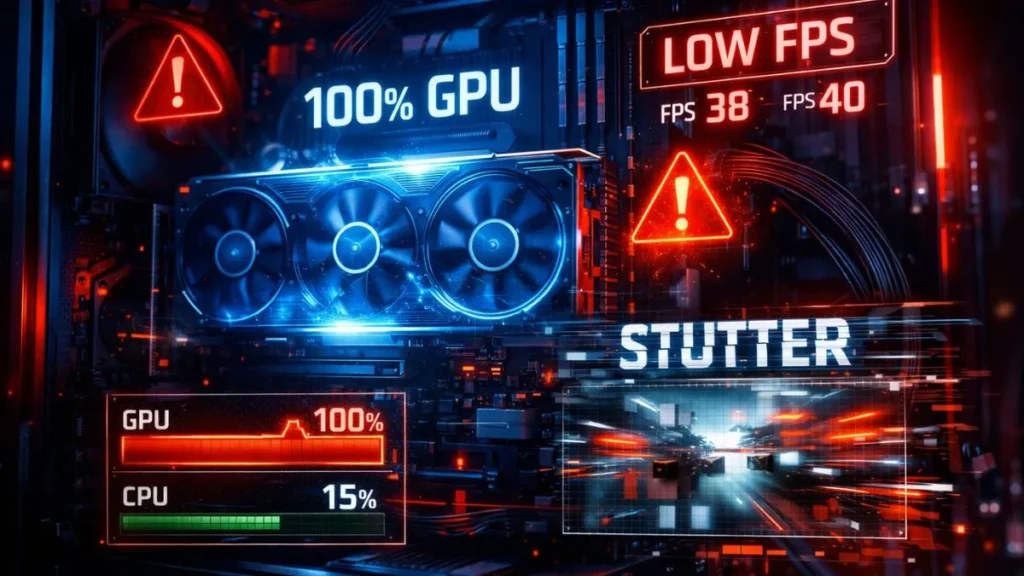
GPU usage is close to 100%
If your GPU is constantly running at full capacity, it’s a strong indicator. Tools like performance monitoring software can show this clearly.
Low frame rate in demanding games
Modern games with a heavy graphics workload can push your GPU to its limits, resulting in lower FPS.
FPS improves when lowering graphics settings
If reducing graphics settings boosts your FPS significantly, your GPU is likely the bottleneck.
High resolution causes performance drops.
Playing at 1440p or 4K increases pixel rendering, making the GPU work harder and often causing performance issues.
CPU usage remains relatively low
When your CPU has low CPU utilization while the GPU is maxed out, it confirms the GPU is holding things back.
What Causes a GPU Bottleneck?
GPU bottlenecks usually occur due to hardware imbalance or heavy graphical demands. Below are some of the most common reasons behind a GPU bottleneck.
Weak GPU paired with a powerful CPU
A mismatched hardware pairing, like a Ryzen 9 CPU with a GTX 1650, creates an imbalance. The CPU can handle more, but the GPU cannot.
Playing games at a very high resolution
Higher resolutions increase the rendering workload, pushing GPUs beyond their limits.
Ultra graphics settings
Features like ray tracing, ultra textures, and anti-aliasing drastically increase GPU demand.
Limited VRAM
Low VRAM can restrict how much graphical data your GPU can handle, especially in modern titles.
Demanding modern games
New games are optimized for powerful GPUs, increasing overall game performance requirements.
How to Check If Your PC Has a GPU Bottleneck
You can easily identify a GPU bottleneck by observing how your system performs under real-world usage, but in modern systems, there are several easy methods to check it. Here are some simple ways to identify a GPU bottleneck.
Monitor GPU and CPU usage.
Use tools such as MSI Afterburner or Task Manager to monitor system utilization in real time.
Test performance at different graphics settings
Lower settings and observe FPS changes. Big improvements mean GPU limitations.
Compare performance at different resolutions
Switch between 1080p, 1440p, and 4K to analyze performance metrics.
Run benchmarking software
Benchmarking tools help evaluate your system’s limits and identify bottlenecks.
Check Your GPU Bottleneck With Our Calculator
Want a quick answer without testing? A bottleneck calculator can help. Select your CPU and GPU, and it will estimate your system’s performance balance.
This approach helps identify potential bottlenecks before upgrading. It’s especially useful when planning a new PC build or deciding whether to upgrade your graphics card. While not 100% accurate, it gives a solid starting point for performance optimization.
How to Fix a GPU Bottleneck
Here are the easiest ways to fix a GPU bottleneck and improve your system performance:
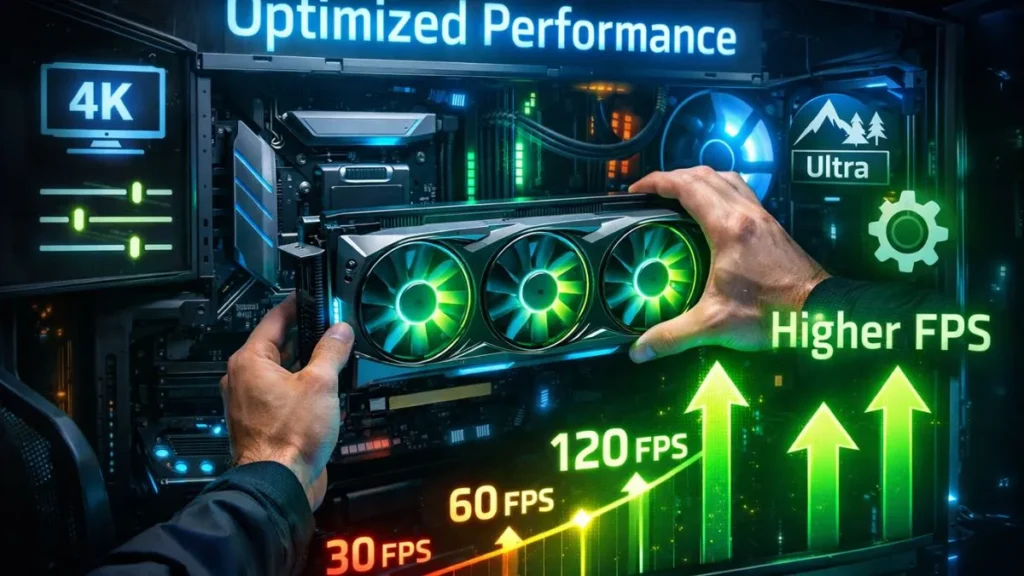
Lower graphics settings
Reducing textures, shadows, and effects lowers the rendering workload, improving FPS.
Reduce screen resolution
Dropping from 4K to 1440p or 1080p significantly reduces the graphical workload.
Update GPU drivers
New drivers often improve system performance and fix bugs.
Close background applications
Freeing system resources ensures maximum GPU efficiency.
Upgrade your graphics card
Sometimes, the only real fix is upgrading to a more powerful GPU.
How to Prevent GPU Bottlenecks When Building a PC
Preventing a GPU bottleneck starts with choosing the right balance between your components and planning based on your usage. Let’s look at the best ways to avoid this:
Choose balanced CPU and GPU combinations
Avoid mismatched components to maintain hardware compatibility.
Consider gaming resolution
Your resolution determines how much load your GPU will handle.
Check VRAM requirements
Ensure your GPU has enough VRAM for modern games.
Use reliable bottleneck calculators
They help ensure a balanced PC build before you buy.
Is a GPU Bottleneck Always Bad?
Not really. Every system has some level of performance limitation. In fact, a slight GPU bottleneck is often ideal because it ensures your GPU is fully utilized. The goal is not to eliminate bottlenecks—it’s to maintain a healthy system balance where no component severely limits performance.
GPU Bottleneck in 1080p vs 1440p vs 4K Gaming
Resolution plays a huge role in GPU utilization.
- 1080p: Often CPU-limited, as GPU workload is lighter
- 1440p: Balanced between CPU and GPU
- 4K: Heavy pixel rendering, usually GPU bottlenecked
Higher resolutions increase resolution scaling, pushing GPUs harder and affecting gaming performance.
Real Examples of GPU Bottlenecks
Let’s look at some real-world scenarios. Pairing an RTX 4090 with an entry-level CPU creates a CPU bottleneck, but flipping it—using a weak GPU with a powerful CPU—creates a GPU bottleneck. For example, a Ryzen 9 combined with a GTX 1660 results in limited FPS because the GPU cannot match the CPU’s speed.
Another example is using an RTX 3060 with an older processor. While still playable, performance may not reach full potential due to an imbalance in hardware pairing. These cases highlight the importance of choosing compatible components for optimal gaming performance.
Common Myths About GPU Bottlenecks
Many people misunderstand bottlenecks. One common myth is that they completely ruin performance. In reality, minor bottlenecks are normal. Another misconception is that bottleneck calculators are always accurate—they’re helpful but not perfect. Lastly, high GPU utilization doesn’t always mean a problem; it often indicates your GPU is being fully used.
Frequently Asked Questions
Below are the common questions people ask about the GPU Bottleneck.
What is a GPU bottleneck in gaming?
It’s when the GPU cannot process frames fast enough, limiting FPS and overall gaming performance.
How do I know if my GPU is bottlenecking my CPU?
Check if GPU usage is high while CPU usage is low using performance monitoring tools.
Is 100% GPU usage a bottleneck?
Not always. It can mean efficient usage unless it causes FPS drops.
Should I upgrade my CPU or GPU?
If GPU usage is maxed out, upgrading the GPU is usually the better choice.
What percentage of the bottleneck is acceptable?
A small bottleneck (5–10%) is normal and doesn’t significantly affect performance.
Conclusion
A GPU bottleneck happens when your graphics card becomes the weakest link in your system, limiting frame rendering and overall performance. By understanding how the rendering pipeline works, you can easily identify when your GPU is struggling to keep up with the rest of your hardware.
Common signs include high GPU usage, FPS drops, and noticeable performance improvements when lowering graphics settings. These indicators help you diagnose the issue more accurately.
Fixing a GPU bottleneck can be as simple as adjusting your graphics settings or as significant as upgrading your GPU. The key is maintaining a balanced system where your CPU and GPU work efficiently together for your specific gaming needs. Whether you play at 1080p or 4K, a properly balanced setup ensures smoother performance and better results.
PC Bottleneck Calculator helps users analyze CPU and GPU performance, detect bottlenecks, and optimize PC builds with simple tools and practical guides.