
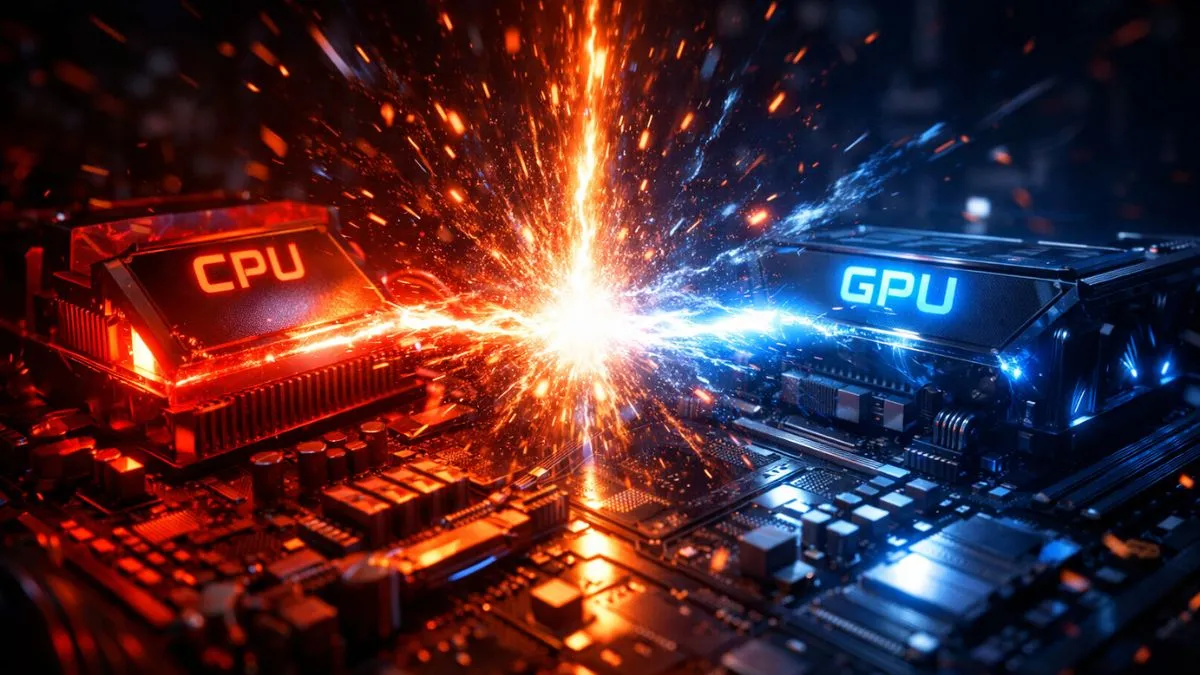
PC bottleneck occurs when one componenstep t, like the CPU or GPU, is slower and limits the performance of the whole system. You can check it by comparing usage during a game. If the CPU is very high and the GPU is low, the CPU is the bottleneck, and if the GPU is high, then the GPU is the limit.
Introduction
Ever played a game expecting smooth 144 FPS… but instead got random stutters, drops, and inconsistent performance? That’s exactly when you start wondering how to check if your PC has a bottleneck.
You upgrade your GPU, install everything perfectly, and still—something feels off. That “something” is usually a bottleneck silently holding your system back.
Here’s the reality: every PC has a bottleneck. It’s not a problem by itself—it’s just how hardware works. But when the imbalance becomes too big, your performance starts suffering, and your expensive components don’t perform the way they should.
In this guide, you’ll learn a simple, step-by-step way to check if your PC has a bottleneck using real usage data—not guesswork. By the end, you’ll clearly understand what’s limiting your system and how to deal with it.
What Is a Bottleneck?
A bottleneck in a PC is simply a performance imbalance. One component is too slow, and it holds back everything else. Think of it like a water bottle: no matter how wide the bottle is, the narrow neck controls how fast water flows.
In gaming, the two main players are the CPU (processor) and GPU (graphics card). The CPU handles logic—AI, physics, calculations—while the GPU renders visuals like textures and lighting.
CPU vs GPU Role in Gaming
The CPU is basically the “brain” of the game. It decides what happens next—enemy movement, physics, and game rules. Meanwhile, the GPU is the “artist,” drawing everything you see on screen. If either one slows down, the whole experience suffers.
Why Bottlenecks Happen
Bottlenecks happen when these two components are not balanced. For example:
- A powerful GPU paired with a weak CPU → CPU bottleneck
- A strong CPU with an old GPU → GPU bottleneck
One component ends up waiting for the other, reducing FPS and causing inefficiencies.
How to Identify a Bottleneck
Now let’s get practical. Forget complicated tools for a second—the core method is simple:
Monitoring CPU Usage
If your CPU is constantly hitting 90–100%, it means it’s working at full capacity. This often indicates it cannot keep up with the GPU.
Monitoring GPU Usage
Your GPU should ideally run close to 95–100% in games. If it’s sitting at 50–70%, something is holding it back.
Real-Time Comparison
This is where the magic happens:
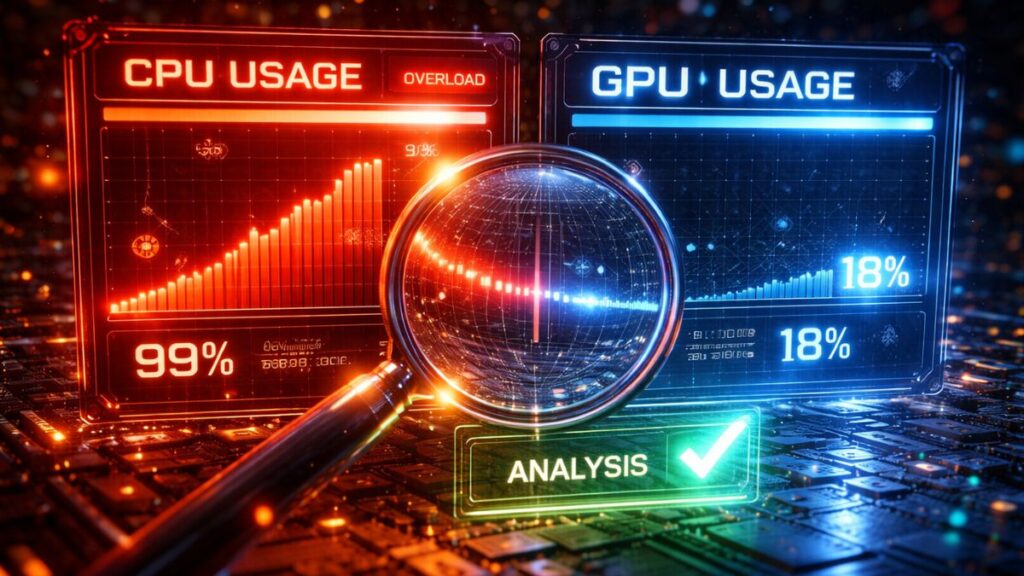
- High CPU + Low GPU = CPU bottleneck
- High GPU + Normal CPU = GPU bottleneck
- Both high = balanced system
This method is widely used because it reflects real performance behavior, not theoretical calculations.
Step-by-Step Guide to Check Bottleneck
Let’s break this down into a simple process you can follow right now.
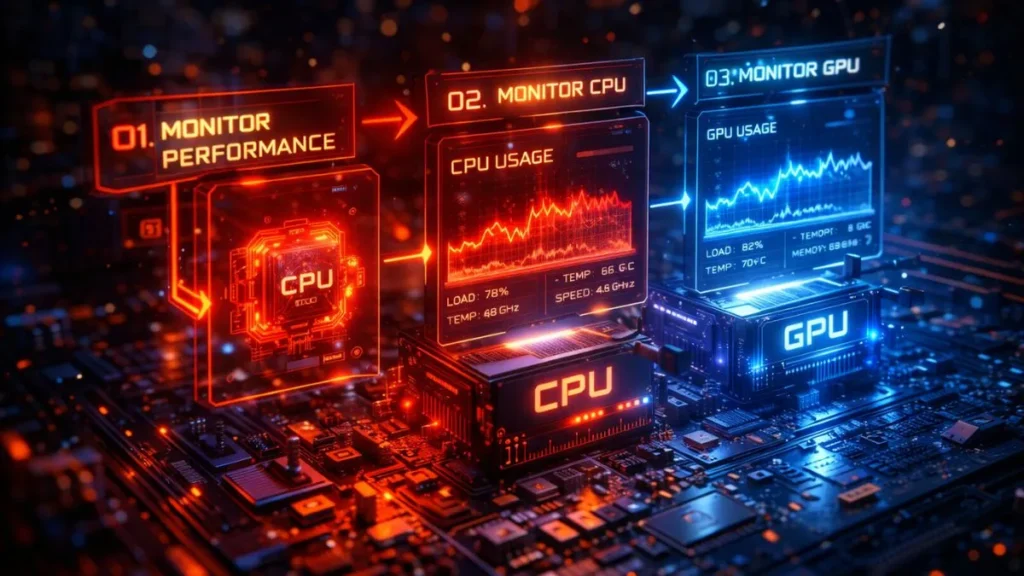
Step 1: Open Monitoring Tools
You need software to see real-time usage.
Task Manager
Press Ctrl + Shift + Esc, go to the Performance tab. It’s basic, but works.
MSI Afterburner
This is more advanced and shows in-game overlays—highly recommended.
Step 2: Check CPU Usage
Launch your game and observe CPU usage:
- If the CPU is hitting 90–100% consistently, that’s a warning sign
- Even one core maxing out can cause issues
CPU bottlenecks often show as stuttering and inconsistent frame times, not just low FPS.
Step 3: Check GPU Usage
Now look at your GPU:
- If the GPU is below 80% usage, something is wrong
- A healthy system pushes the GPU close to max
Low GPU usage is one of the clearest bottleneck indicators.
Step 4: Analyze Usage Pattern
Here’s the golden rule:
| Scenario | Meaning |
|---|---|
| CPU 100% + GPU 60% | CPU bottleneck |
| GPU 100% + CPU 50% | GPU bottleneck |
| Both are near 100% | Balanced system |
This pattern analysis is more reliable than any calculator.
Step 5: Confirm with Bottleneck Calculator
To be sure, run your specs through our PC bottleneck calculator—it gives you a quick estimate of whether your CPU or GPU is holding your system back.
Real-World Gaming Examples
Let’s make this real.
Some games are CPU-heavy, like competitive shooters or simulation games. These demand fast processing for AI and physics. Others are GPU-heavy, especially AAA titles with ultra graphics and ray tracing.
For example:
- CPU-heavy → esports games push high FPS, stressing the processor
- GPU-heavy → cinematic games load textures, lighting, and effects
Because of this, your bottleneck can actually change depending on the game you play.
Why Bottleneck Changes (Resolution Factor)
Here’s something most people miss: resolution changes everything.
- 1080p → CPU bottleneck more likely
- 1440p → balanced load
- 4K → GPU bottleneck almost always
At lower resolutions, the GPU finishes work faster, so the CPU becomes the limiter. At higher resolutions, the GPU struggles more, shifting the bottleneck.
Common Signs of Bottleneck
You don’t always need software—your PC shows symptoms:
- FPS not improving after lowering settings
- Random stutters and frame drops
- High CPU usage with low GPU usage
- Inconsistent performance in busy scenes
These signs usually indicate an imbalance rather than a hardware failure.
How to Confirm Bottleneck Properly
A lot of people make mistakes here. They rely on a single metric and jump to conclusions. The correct way is a combination:
- Monitor CPU and GPU usage
- Analyze patterns across different games
- Change resolution and observe behavior
- Use a calculator only as validation
This layered approach avoids false positives like V-Sync limits or background processes.
What to Do If You Find a Bottleneck
So you confirmed it—now what?
Software Fixes
Before spending money, optimize:
- Lower CPU-heavy settings (like draw distance)
- Close background apps
- Update drivers
- Disable unnecessary overlays
Sometimes, these tweaks alone can improve performance significantly.
Hardware Fixes
If the bottleneck is severe, upgrades may be needed:
- CPU upgrade → fixes CPU bottleneck
- GPU upgrade → fixes GPU bottleneck
- More RAM → helps in certain scenarios
But remember: the goal isn’t zero bottleneck—it’s balance.
Frequently Asked Questions
Below are the FAQs.
What is a bad bottleneck percentage?
Anything above 20–30% imbalance can start affecting performance noticeably, especially in CPU bottlenecks.
Is 100% GPU usage bad?
No. That’s actually ideal—it means your GPU is fully utilized.
How do I know if I have a CPU bottleneck?
High CPU usage (90–100%) combined with low GPU usage is the clearest sign.
Why is my GPU not fully used?
Usually because your CPU can’t keep up, or settings like FPS caps are limiting it.
Is a bottleneck always bad?
Not at all. Every system has one—the goal is keeping it balanced and unnoticeable.
Conclusion
A bottleneck doesn’t mean your PC is broken—it means your system is slightly out of balance. And honestly, that’s completely normal. Every PC has a limiting factor; the key is making sure it’s not hurting your experience.
The smartest way to detect a bottleneck isn’t guessing or relying on random tools. It’s a simple observation: check CPU usage, check GPU usage, and understand how they interact. Once you see the pattern, everything becomes clear.
If your games run smoothly and hit your target FPS, you’re fine—even if a bottleneck technically exists. But if performance feels off, now you know exactly how to diagnose and fix it like a pro.
PC Bottleneck Calculator helps users analyze CPU and GPU performance, detect bottlenecks, and optimize PC builds with simple tools and practical guides.