
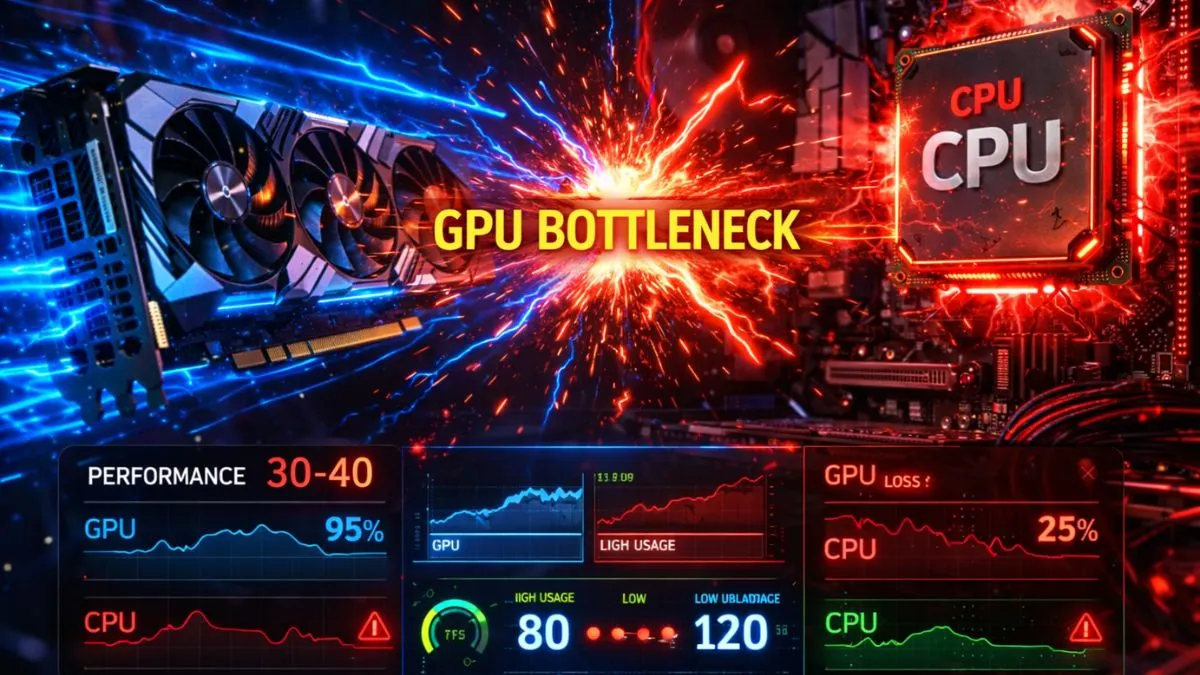
Low GPU usage in games happens because something else is limiting performance—usually the CPU, FPS caps, or system settings—so the GPU doesn’t get enough work to do. Your GPU is ready, but it’s waiting for instructions or being restricted, which keeps its usage low.
Introduction
If you’re asking why is my GPU usage low in games, you’re not alone. This is one of the most confusing and frustrating issues gamers face—especially when you’ve got a powerful GPU, but it’s barely being used. You expect 90–100% usage, but instead you see 30%, 50%, or even less, and your FPS just doesn’t match your hardware.
Here’s the truth: low GPU usage usually doesn’t mean your graphics card is broken. In most cases, it’s a system-level limitation or a settings issue stopping your GPU from doing its job properly.
Think of your GPU like a sports car stuck in traffic. The engine is powerful, but something else is holding it back. This guide will help you figure out exactly what that “traffic” is—and how to clear it.
Don’t Panic: Low GPU Usage Isn’t Always a Problem
Before you start tweaking settings or reinstalling drivers, understand this: low GPU usage is not always bad. In fact, in some situations, it’s completely normal and even expected.
For example, if your game is already hitting your monitor’s refresh rate—like 60Hz or 144Hz—your GPU doesn’t need to work harder. It simply stops pushing extra frames. This often happens when V-Sync or FPS caps are enabled. In these cases, your GPU might sit at 40–60% usage while still delivering smooth gameplay.
Another common scenario is lightweight or competitive games like esports titles. These games are designed to run fast, not look ultra-realistic. So your GPU isn’t heavily stressed, and low usage is expected.
The real problem starts when low GPU usage comes with low FPS or stuttering. That’s when something is clearly limiting performance—and that’s where diagnosis becomes important.
How to Check GPU Usage Properly
One of the biggest mistakes people make is trusting the wrong tools. If you’re using Windows Task Manager alone, you might be seeing misleading data.
Task Manager can sometimes show incorrect GPU usage depending on the game engine, API (like DirectX 11), or system configuration. It might show 0% or very low usage even when your GPU is actually working.
To get accurate readings, you should use tools like MSI Afterburner or GPU-Z. These tools monitor real-time GPU load, clock speeds, and power usage. They give you the full picture, not just a rough estimate.
Also, pay attention to GPU clock speeds. If usage is low but clocks are also low, that’s a real issue. But if clocks are high and usage fluctuates, it might just be normal behavior depending on the game.
Find Your Exact Problem
This is the most important part of the guide. Instead of guessing, you need to identify your exact scenario.
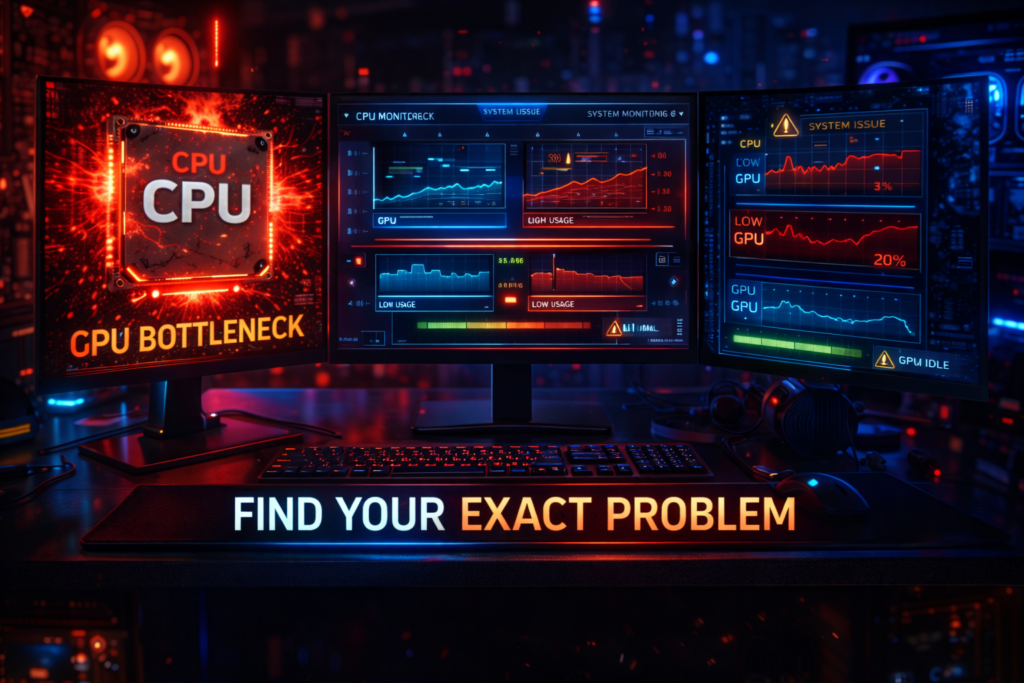
Low GPU + High CPU → CPU Bottleneck
This is the most common cause. When your CPU is maxed out, it cannot send instructions (draw calls) to the GPU fast enough. So your GPU sits idle waiting for work.
You might see:
- CPU at 90–100%
- GPU at 40–70%
- FPS unstable
That’s a classic CPU bottleneck.
Low GPU + Low CPU → System or Settings Issue
If both CPU and GPU usage are low, something else is limiting performance. This could be:
- FPS cap
- V-Sync
- Power-saving mode
- Background apps
Your system is artificially limiting performance, not your hardware.
GPU Showing 0% Usage → Misleading Data
Sometimes, Task Manager shows 0% GPU usage even when the game is running fine. This is usually a monitoring bug, not an actual problem.
Always verify with proper tools before assuming something is wrong.
Only One Game Affected → Game Optimization Issue.
If only one game shows low GPU usage, the issue is likely the game itself. Some engines are poorly optimized or rely heavily on the CPU rather than the GPU.
Even high-end systems can struggle in such cases.
All Games Affected → System-Level Problem
If every game shows low GPU usage, then the issue is definitely in your system:
- Drivers
- Power settings
- Thermal limits
- Background processes
This is where you need to dig deeper.
Common Causes of Low GPU Usage
Low GPU usage in games is usually caused by a CPU bottleneck, incorrect game settings, outdated or corrupted drivers, power or thermal limits, or Windows/system restrictions preventing full GPU utilization.
CPU Bottleneck
The CPU is responsible for preparing frames for the GPU. If it can’t keep up, the GPU simply waits. This is the #1 cause of low GPU usage in gaming.
Modern games still rely heavily on single-core performance, so even a multi-core CPU can bottleneck if one core is maxed out.
Game Settings Limiting GPU Usage
Some settings directly reduce GPU workload:
- V-Sync
- FPS limits
- Low resolution
- Low graphics settings
Lower settings may increase FPS but reduce GPU usage because the workload becomes too easy.
Driver Issues
Outdated or corrupted drivers can prevent your GPU from working properly. This can lead to low usage, stuttering, and poor performance.
A clean reinstall often fixes this.
Power / Thermal Limits
If your GPU or CPU overheats, it will throttle performance to protect itself. This reduces usage and clock speeds.
Laptop users face this more often due to power-saving modes and thermal limits.
Windows / System Issues
Windows settings can silently limit performance:
- Power plan set to Balanced
- Background apps are consuming CPU
- Broken updates
Even small background processes can steal CPU resources, indirectly lowering GPU usage.
How to Fix Low GPU Usage (Based on Cause)
Fix low GPU usage by matching the solution to the exact cause. Whether it’s a CPU bottleneck, game settings limit, driver issue, or power restriction, applying the right fix is the key to restoring proper GPU performance in games.
Fix CPU Bottleneck
Lower CPU-heavy settings like:
- View distance
- NPC density
- Physics settings
Or increase graphics settings slightly to shift lthe oad to the other GPU.
Optimize Game Settings
Disable:
- V-Sync
- FPS caps
Increase resolution or graphics settings to give your GPU more work.
Clean Driver Reinstall (DDU Concept)
Use tools like DDU (Display Driver Uninstaller) to remove old drivers completely before installing new ones. This fixes hidden driver issues.
Power & Thermal Optimization
- Set Windows to High Performance
- Ensure proper cooling
- Check laptop power settings
These steps prevent throttling.
Windows Performance Tweaks
- Close background apps
- Disable unnecessary startup programs
- Update Windows properly
Small tweaks can have a big impact.
Weird but Real Cases
Sometimes the issue isn’t obvious. Real-world cases show:
- GPU stuck at low clock speeds
- GPU not boosting under load
- Windows is limiting GPU power
- Game engines not using the GPU properly
There are even cases where lighter games show low GPU usage while heavier games run perfectly—because heavier games actually use the GPU fully.
How to Increase GPU Usage Safely
Increasing GPU usage isn’t always the goal—performance is.
You should only aim for higher GPU usage if:
- FPS is low
- GPU is underutilized
But if your FPS is already smooth, forcing 100% GPU usage is pointless and may increase heat and power consumption.
Frequently Asked Questions
below are the FAQs.
Why is only 30% of my GPU being used?
Because something else—usually the CPU or FPS cap—is limiting performance, the GPU doesn’t need to work harder.
How to increase GPU usage safely in games?
Increase graphics settings, disable FPS caps, and remove CPU bottlenecks.
Is 90% GPU usage bad?
No, that’s ideal. It means your GPU is fully utilized.
Why is my GPU usage low, but FPS is fine?
Because your system doesn’t need more power—likely due to FPS limits or light workloads.
Can a CPU cause low GPU usage?
Yes, it’s the most common reason. The CPU feeds data to the GPU.
Why is GPU usage low in only one game?
That game is likely poorly optimized or CPU-heavy.
Conclusion
Low GPU usage can feel like wasted performance, but it’s seldom a hardware failure. In most cases, your GPU is simply being held back by something else—your CPU, settings, or system configuration.
The key is not to guess, but to diagnose. Check your CPU usage, test different games, and use proper monitoring tools. Once you identify the real cause, the fix becomes straightforward.
Treat your PC like a system, not just a GPU. When everything works together properly, that’s when you unlock the performance you actually paid for.

PC Bottleneck Calculator helps users analyze CPU and GPU performance, detect bottlenecks, and optimize PC builds with simple tools and practical guides.